


What is Private area?
The private area is a virtual space within the gencat.cat environment that you can access by identifying yourself. Within the Private area, you can consult and carry out procedures associated with our services.
Browsers compatible with access to the Private area
- Explorer Edge: as of the versions based on Chromium.
- Mozilla Firefox version 66.0.3 or later.
- Safari version 12.0.2.
- Chrome version 15 or later.
Currently, you can only carry out procedures with Linux if you download and fill in the PDF forms using another operating system. Work is underway to remove this technological barrier.

- How to access your Private area?
- What can you do in the Private Area?
- What are the different roles or profiles?
- What information can you see in the “Data and documents” section?
- How can I attach documentation to an application and make a payment?
- What is GencatBOT?
- How is user satisfaction measured?
How to access your Private area?
To access your Private area, you must identify yourself using a certificate or one-time password (idCAT Mòbil or Cl@ve). After identifying you, we can provide you with personalised information on the procedures or transactions you have carried out.
You can access the Private area from two locations:
- The link in the header that appears at the top of all the gencat.cat pages:

- The links you will find on the different pages of the service:
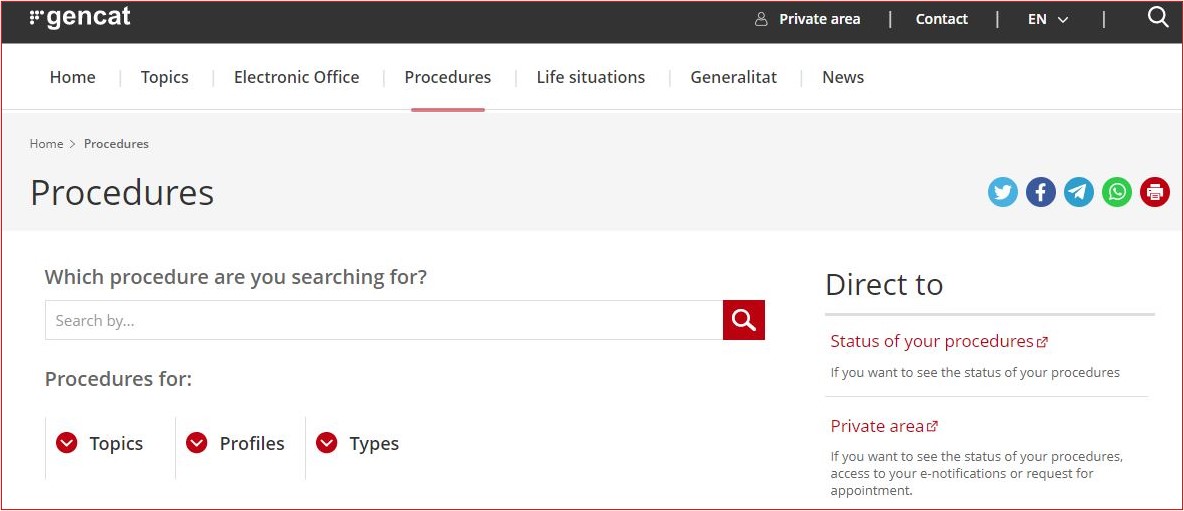
Next, you will be asked to choose whether you want to access it as a citizen, company, self-employed person or intermediary. The option you choose will dictate which environment of the Private area you are directed to.
Both environments offer different functions, with the bussinessm environment featuring specific business-oriented functions that are not available in the citizen interface.
To identify yourself, you will need to select the type of digital certificate or one-time password you want to use on the screen that appears:

Remember that the method you use to identify yourself will determine the information you see in the Private area, and the Disconnect option can be found next to your name. To avoid error messages, we recommend you close all browser windows before attempting yo re-access.
 TOP
TOPWhat can you do in the Private Area?
In the Private Area, the information is organised by service.
Once you have logged in, you will see the different options:
- Home page: access to the procedures search engine, to the last procedures you carried out and to other personal areas. From this homepage you can see:
- Alerts, should you have draft procedures.
- Reminders of pending actions with an upcoming deadline, such as requests for outstanding procedure documentation or payments.
- Notifications and alerts about your transactions and how to access them.
- Procedures and transactions: access to the procedures and transactions you are carrying out with the Generalitat.
- Data and documents: consult personal information, documents and contact details.
- Appointments: access to appointments requested at Generalitat offices.
- Notifications: access to electronic notifications.
- Subscriptions: access to the subscriptions you have signed up for in regard to any Generalitat procedure or service.
- Contact mailbox: access to the queries you have made to the Generalitat, either by telephone, in person or via the web form.
What are the different roles or profiles?
Depending the certificate used to access Private area, will be displayed different information and procedures:
- Individual: a person who identifies themselves using a personal certificate (NIF). They can access all the procedures they have carried out (the NIF of the entry must match the NIF of the certificate).
- Legal representative of a company: a person who identifies themselves with a legal entity certificate. They can access all the procedures carried out by the company (the CIF of the entry must match the CIF of the certificate). The CIF is recorded in the entry as the submitter or applicant.
- Persons linked to an organisation or company: they can access all the procedures in which the CIF and the NIF of the entry in the folder coincide with those of the certificate, and the NIF and the CIF (both) appear as the submitter or applicant. If you access as an individual, you will see the procedures in which the CIF of the entry coincides with that of the certificate and the CIF of the submitter is not the same as the CIF of the applicant.
What information can you see in the “Data and documents” section?
This section gives you access to the data that the Administration of the Generalitat de Catalunya has about you. It allows you to manage documents and also your contact details.
In 'My details' you can see data that the Administration has about you regarding accreditation, diplomas or other official documents. These consultations are classified in categories that will be expanded.
'My documents' is your personal document space:
- Here you can view documents added from “My details” or submitted to the registry offices.
- You only receive these documents in your Private Area.
- This service lets you manage documents in your dealings with the Administration.
How can I attach documentation to an application and make a payment?
To attach documentation to a procedure, go to the “Procedures” section and select the corresponding file or procedure. Then go to the “Documentation” section.
You can also pay for a procedure from your Private Area. When you log in, you will see that it says “Payment” with a link to make the payment if it is pending.
When you select the option to pay, you will be offered the alternatives available for this procedure.
What is GencatBOT?
GencatBOT is a virtual help system that helps answer your questions, available in the Private Area.
How is user satisfaction measured?
The Private Area has a 'Send us your ideas' option to give your personal opinion anonymously. It will help us to improve issues such as accessibility, search problems, etc.
In this functionality, no personal data is collected and no response will be given to queries about specific procedures that may be made in the open text fields.